Friday, 25 March 2016

AMD Quick Stream Error

Hey, well my little (maybe not little) HP Pavillion G Series laptop (mentioned in a couple of posts years ago) is still going strong. She's have a couple of updates since then, has all the RAM she can handle and an SSD shoved inside to make it the best it can be.. even sporting Windows 10. I did get a Dell Latitude E6410 for my birthday from my Mrs, I missed the trackpoint from my Thinkpad T41/61. The Dell is great, built like a tank and quite dinky really.


Anyways, I came back to my HP and found this really annoying error at start up. Admittedly.. I don't start up anywhere near as often as I used to. I've found that Windows 10's energy saving settings make actually turning off the computer a bit of a waste of time.. I digress.. this is still annoying. I left it a little while, figuring it'd get sorting in the next Windows update.. it didn't.

The fix was surprisingly simple. I can't take all the credit I'm afraid... AlanVi posted the fix on this Microsoft forum. Basically.. follow this link, download and install AMD Quick Stream.. and the problem goes away. You would think companies like AMD and Microsoft would let each other know stuff like this might happen to each others gear..

On a more personal note.. I started up Chrome on this old pup and found the Amazon page for my new laptop.. I didn't even try to hide the impending affair from my G6.

Wednesday, 16 March 2016

How to setup a VPN into your home network!

And a proper VPN too, a VPN that lets you view all your shared content in a way that makes it look like you're actually at home!

I have an Asus RT-AC68U which I bought to replace the waste of time efforts being churned out by the Virgin Media "Super" Hub.. Seriously, what is the point of superfast fibre optic up to my house.. and then giving me a crappy router?

Anyway's the internet actually works in my house now which is nice. The router is fast and easy to setup and has many little extra's (probably standard on most routers these days in fairness). One of the options is VPN! Exciting stuff. VPN's are great for securing your connection to the internet, especially if you're using public WIFI but I wanted a VPN to be really useful and connect me to my home network.

So, login to your router


This is what I'm greeted with, don't worry about the white boxes, that's where I've removed data relating to me. As you can see, on the left had side is a tab referring to VPN.


Then select OpenVPN - this is a free program that you'll use with your laptop/phone etc to connect to your VPN. Then, switch on the VPN server and then select Advance Settings.


Here you can see extra options. The important one is the Interface Type, TUN means that the VPN will just route your internet traffic over your home connection. TAP is the interface that will allow you to connect to your home network as if you're at home! 

Go back to General settings and create your user accounts. 


As you can see above, the Asus gives you links to the OpenVPN website and provides instructions on how to setup your Client (laptop/phone) using the key that you can export (see button below VPN Details).

I've used it from work on my laptop and it works brilliantly. The only glitch I've noticed is that mapped network drives don't tend to work so you end up going to your shared drives via the Network link in File Explorer. A minor issue in something that is otherwise really handy!

Oh and Android's version of OpenVPN doesn't like the TAP interface yet. So, if you set it to TAP you can use your home VPN on your laptop etc but not your Android. Changing the interface to TUN will allow you to connect your Android however then you'd lose access to all your shared drives when away from home.

Getting Cortana to speak proper English like wot I do..

I've been playing around with Windows 10 for a few months now and despite people moaning about it (like people always do with any new release), I actually quite like it. There's no revolution in any of its lay out, its pretty much Windows 7 with a few shiny bits added.

One of the main additions to Windows 10 was Cortana. The ability to speak to your computer and get it to do stuff without you touching it. I've never really been into voice recognition software but since playing around with it on my Android whilst driving.. I've actually found it remarkably handy. I didn't expect it to work.. but it did.

Anyhoo, lets try it on Windows 10.. As far as I could tell it was all set up as UK English.. but apparently not! Cortana thought we were in America, and speaking American English. Good grief. Should be easy to change (after all this is Windows 10..). No. What a lot of faff for something that's main purpose is to make interacting with technology easier and more intuitive..

So first off, click on the Windows icon and go to Settings


Then select Time and Language etc


Then Additional date time and regional settings


Then click Region and then Administrative


Then click Copy Settings


What! Look! America! How did that get in there! Pesky imperialists.. 
Click the bottom two radio buttons asking if you'd like to copy your language to the Welcome Screen etc and then click OK


Phew, everything's back to Blighty!

Now go back to settings, easiest way might be to go back via the Windows button and head back to Time and Language etc and click on Region and Language


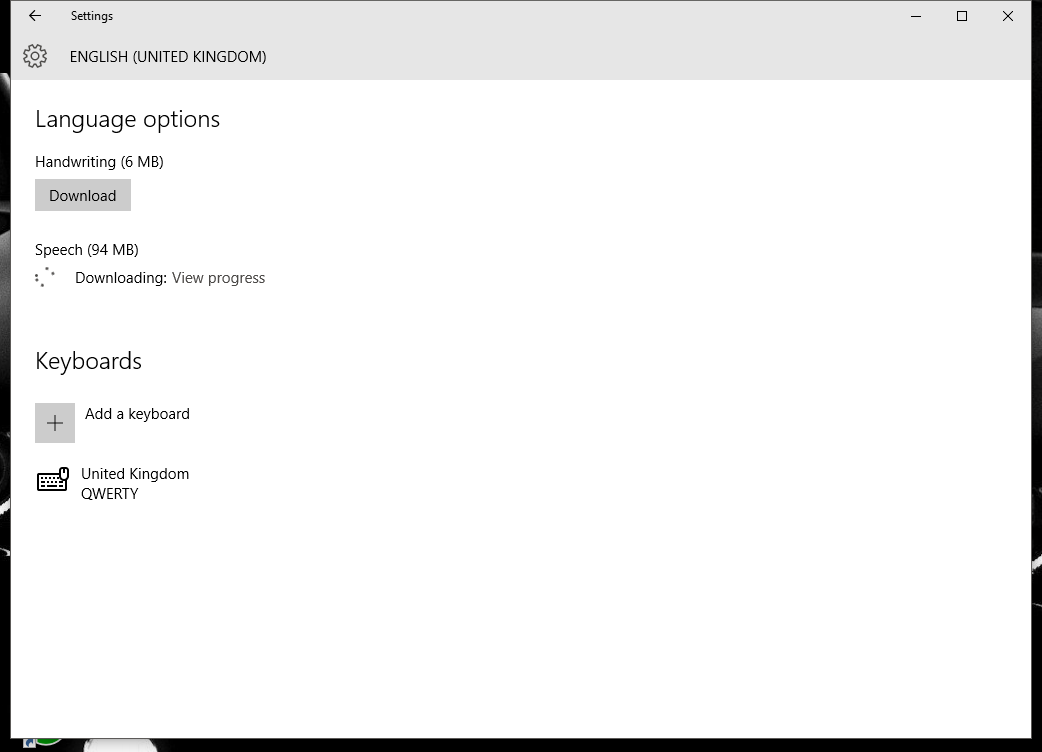
Click on Options


and click on Download under speech


Once the download has finished, click on Settings


These should all be set to UK, if they're not, select UK from the drop down lists and then click Apply settings to the Welcome Screen etc


Now, head back to Settings, Time and Language and then Speech and select English UK from the drop down.


For some reason with me, this option didn't appear straight away. I clicked around back and forth a couple of times and then it appeared as an option. Ideally, I guess a reboot would have prompted the appearance.

Its a lot of clicking around back and forth but it's the way its done! I've used it a couple of times and it is remarkably clever.


Friday, 21 August 2015

Windows XP Update through Explorer not working after fresh install

Regarding my last post, I've just done a fresh XP install on a Dell Dimension 2400. The OEM version of XP on this was up to Service Pack 2. After installing SP3 I then installed .Net Framework 4 and still had the problem of not being able to initiate updates. If you have this problem as well, try this fix from Microsoft. It worked for me! Its fix number 50777.

Thursday, 20 August 2015

Picasa constantly searching photos as though it was a fresh install..

This happened to me before in an installation with Windows 7 and has happened again with Windows 10. There's surprisingly little info out there on how to fix it despite it being a problem that a lot of people suffer with.

The symptom; every time I opened Picasa it would ask me where I wanted it to search for pictures, as though it was just installed. It would run the search find everything. Then when I closed Picasa and returned to it moments later, it would ask to do it all again. Clearly.. summit broked.

The only way I could fix this was to uninstall Picasa, then manually remove the leftovers. I found associated Picasa data here;

C:\Users\######\AppData\Local
C:\Program Files (x86)

(##### is your username)

Just delete the folders with Picasa mentioned in their names.

I then restarted my PC (I'm old fashioned and always found restarting solved many problems - and clears the cache)

After deleting this and then downloading a fresh copy of Picasa (as I had done before - god knows why this worked) the installation worked and Picasa behaved as it's supposed to.

This isn't the disaster it sounds, if you login to your Google account with Picasa it automatically identifies the items you've previously uploaded etc. It sounds like major surgery but it isn't and it worked for me!

Installing Quicktime in Windows 10

Okay, so far I love Windows 10. I did a straight upgrade on my laptop (the HP G6 I've mentioned before) however on my PC, I decided that I wanted to increase the size of the SSD I had installed and then put a fresh Windows 10 installation on that. Although there is a way to download Windows 10 as a standalone, I found that it wanted a COA key. It didn't recognise the Windows 7 COA like I figured it would. The way I got around this, was to upgrade Windows 7 to Windows 10 and then create a recovery USB and then install that onto the new SSD. It worked!

So, the laptop was working fine, all the old stuff carried on as usual however I was buggered on the PC as I like to use Picasa and was unable to view videos etc without Quicktime installed. Apple has not yet made Quicktime compatible with Windows 10.

The work around.. download Quicktime. Unzip the download (right click etc - I use a really good program called 7zip for this). Once unzipped run AppleApplicationSupport and then AppleSoftwareUpdate. These should install fine. Then, right click on Quicktime and select Troubleshoot Compatibility. Windows 10 then literally figures out the rest and installs Quicktime as it should.

Tada!

Getting the updates to work after a fresh install of XP

I've recently decided to clear out a load of my old IT stuff that I don't use very much. I found two Compaq D510's, one is a Pentium 4 2.4 and the other a Pentium 4 1.6. They both had over 1GB of RAM in them which isn't bad!

I decided to stick a fresh install of Windows XP on them so that I could sell them both on Gumtree. I figured someone else might make better use of them.

If you have an old Windows XP terminal with a COA sticker and no installation disk, you'll need to track down a copy of Windows XP OEM. This will basically accept any COA sticker and run with Windows activation program after installation. So far, I've never had any issues with this.

One of the first problems I came across after installing XP was getting all the updates. Even with SP3 installed there was still a problem, basically, the Windows Update page wouldn't load at all. The fix for this is to install Microsoft .NET Framework 4. This filled in the gaps between an old copy of XP and the updated updates feed!